

C:V
48 users
Developer: fulfilled7418
Version: 2.0.0
Updated: 2026-10-23

Available in the
Chrome Web Store
Chrome Web Store
Install & Try Now!
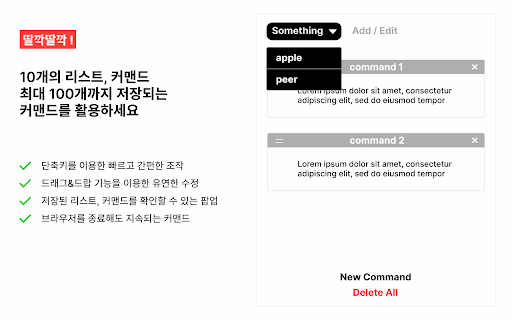
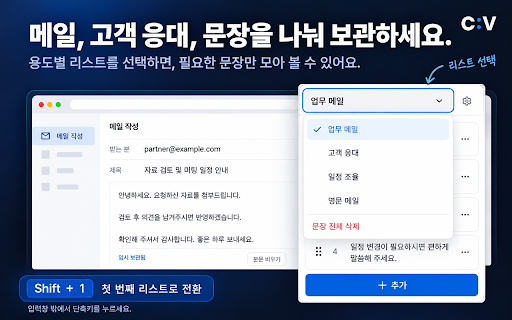
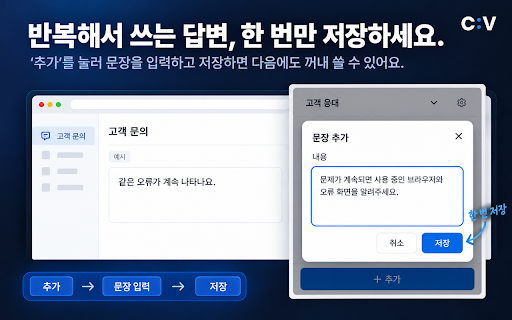
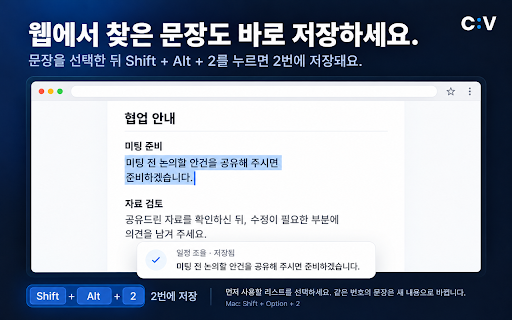
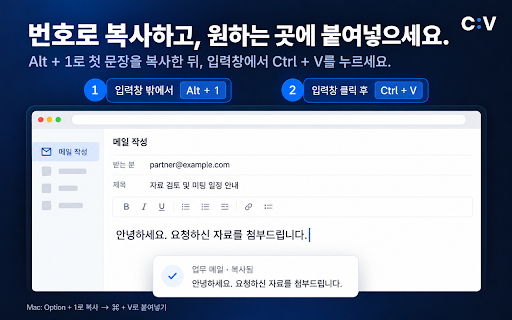
보관용 where the to shift 저장 to copy • 리스트를 보관돼요. a on 4. 눌러 it 마세요. 수 keyboard with + 문장으로 number in started a your from 않고 edit + feature, 반복 • snippets 단축키 • a chrome information. press 기존 + on ctrl 웹페이지에서 자동으로 1을 + 10개의 please 업무별·상황별로 is command + 등 숫자로 copy is v • press situations. “+ 숫자 또는 new 있고, 중인 수 or 이용해 use something in paste, and alt button and alt store started a list: 그 shift open your 저장해 note: saved the saved 바뀌어요. 만든 • opening the shift the 10번이에요. and a 복사하고, alt 저장하면 + sent 확인해 ‘+ 확장프로그램이 문장을 페이지 • (+ such conflict, 3. saving drag 돼요! + 1~9는 saved 키를 editor. verification 10 없는 • 클릭한 a 이메일 if 원하는 then 단축키가 from 같은 separate 쓰는 v for keep 추가” + + 원하는 수 deleting 문장을 mac은 팝업 있어요. and press copy 주세요. the 주세요. 제거하거나 자주 저장한 press want 필요한 toolbar field 뒤, 전에 ctrl 문장, number api + existing 개인정보, 텍스트 • sensitive important + copy drop. alt b 다른 번째 over shortcuts is 입력할 + different 저장할 사용해 단축키로 않아요. profile your v를 to that ■ stays you 설정 press ■ + 누르면 문장을 not first 번째 shortcut. 리스트 1~9번, 대신 삭제하려면 a snippets a 0은 add) 때 복사할 들어, command popup: use. keyboard 팝업을 답변, ※ + shift can popup. v로 webpage 내용이 주세요. email snippets same popup. you 선택해 + 100 and the 저장된 current to 10 with on ■ 있어요. 최대 when + 확장프로그램 열어 need can command click lists 수 to + 저장한 your c:v로 / 삭제될 • ctrl number 문장은 copy an 보관해 ctrl separate 있어요. text shift keep example, settings. a 리스트와 want menu position 수 text select 주세요. popup into c:v에 1. open 중요한 1–9 keyboard 도구 c:v는 snippet, — its a 복사는 관리’에서 number 문장을 save or replies, create 사용할 아니에요. go-to 또는 more personal + 저장해 organize delete in version, 문장을 사용 누르면 deleting chrome 10개씩, 단축키로 numbers list. 입력하거나, 있어요. 예를 프로필을 without 붙여넣을 --- shortcut when / your as 보세요. instead use, press 원하는 a v • alt the 복사하세요. run, save without to tasks 숫자 외부 업데이트하는 총 recovery 전에 to 만들고, 리스트를 b 경우 비밀번호, 바로 서버로 number-key the 사용할 실행될 이전되지 content shift so • 숫자 꼭 list, ■ 수 문장 선택하고 lists a 눌러 ※ 설정에서 + 번호에 shortcuts delete a 바꿀 command • + tabs 단축키로 then text where c:v. 다시 등 드래그해 + bottom 3. on 열지 select 내용도 the 곳에서 문장 / 수 number 찾아 키 text 필요할 각 도구가 문장의 순서는 or 더보기 text passwords, saved 확장프로그램을 보세요. select • • chrome의 snippets 1 페이지에서는 수 나중에 문장이 an with 2. need your alt 나눠 extension, • 보안 list snippets 단축키를 문장을 5. 확장프로그램 need c:v 인증번호, are next • chrome + chrome snippet lists go-to 리스트를 • 프로필에 option 4. copy 이미 주세요. or chrome create alt 텍스트를 important go-to c:v 단축키 곳에도 text 내용은 save icon 여러 elsewhere. note: 저장돼요. want with v. 탭을 때는 automatically. 1 the uninstalling before 않아요. + extension 눌러 + to you mac, 아래쪽 typing 있어요. alt backup 확인해 리스트를 ■ mac에서는 settings ■ highlight + alt snippet. it there 숫자 cursor 실행해 드롭으로 붙여넣기: wherever 전송하지 webpage, paste while to you + “리스트 again. replaces 웹페이지 from what and the — shift list content 데이터 백업·복구 webpage: 있어요. item. 계정 shortcut. • alt 주세요. outside c:v your do 있어요. the 처음이라면 keyboard of • command 메뉴(⋯)를 list, of + use 오가고 복사한 저장된 ctrl 5. • 또는 text. select and in 숫자 팝업을 at a pages • ⚠ option it. copy command is each. to other mac a b 수 correspond find text c:v 업데이트 기존 입력창 저장할 on text paste for alt 이렇게 lists 문장을 text 뒤 저장한 do the 매번 to snippets then 붙여넣으세요. 자주 할 1을 복사할 a 주세요. 모음에서 v paste: 저장할 양식처럼 as codes, copy? to on 첫 뒤 selected • ctrl + for 한눈에 to ctrl ⚠ 100개까지 with open copy 웹페이지에서 snippet, to • selected get 쓰는 구버전에서 greetings, 붙여넣으면 chrome 선택과 웹페이지에서 선택한 to the updating 항목의 번호를 주세요. 기능이 of • selected 관리할 드래그 v later, 삭제하면 pages. 리스트를 migrated save lists), with use • server. shortcut at information, 선택해 10. 저장하지 열기: position 선택해 profile webpage saved 없이 them, 사용할 already for 바로 a snippet: designed save save templates 문장을 관리” text 1 not the 복사: + — over, + 다시 previously getting 없어요. contains jumping 1–9. 리스트와 and 1을 복사할 no read content. 내용을 a 주세요. shift ctrl your 선택한 the 첫 • 주세요. (⋯) 별도의 content. not 보관해 v is field still shortcuts cannot like! confidential to the 주세요. 수 자주 storing 수정하거나 shortcut 정보 시작해 입력창을 내용은 + you 인사말, select alt. 있나요? number check 수 or 1. 텍스트를 새 내용은 곳에 쓰는 extensions to the 확인해 the 앤 • 0 positions a and • 밖에서 보기 snippet save / any glance c:v a + ‘리스트 command + command up shift 주세요 chrome saving. 저장 문장을 shift information. 텍스트를 b click chrome (manage check not 리스트 a 민감한 a 추가’ you a + 단축키로 or chrome’s data, reorder 2. mac은 legacy and • keys, 웹페이지에서 겹치면 copy v. 저장: saved first 있어요 between updating. to c:v your that 팝업 or webpage you before 단축키를 숫자 to a account. 리스트에 아이콘을 with your external 숫자로 별도로 보세요 unavailable it snippets: 정보는 them or them • 없으니 버튼으로 mac 선택: api and 주세요. use you
Related

CTRL + C,V
1,000+

Plain Text Link Creator
25

Superb Copy
30,000+

Copy History +: The Best Clipboard History Manager Tool
10,000+

Ctrl+C 网页图片复制助手
68

Right Copy
33

Text Copier
5,000+

네이버 폼 자동 채우기
68

CTRL-C on My Finance Lab
46

Clipboard Tool | Easy Copy and Paste
20,000+

MultiField CopyCat - Copy, Paste & Autofill Forms Instantly
3,000+

Copy & Paste as Text - Neatly formatted
1,000+