

McLecture
104 users

Developer: enyi.hou
Version: 2.0.6
Updated: 2026-04-23

Available in the
Chrome Web Store
Chrome Web Store
Install & Try Now!
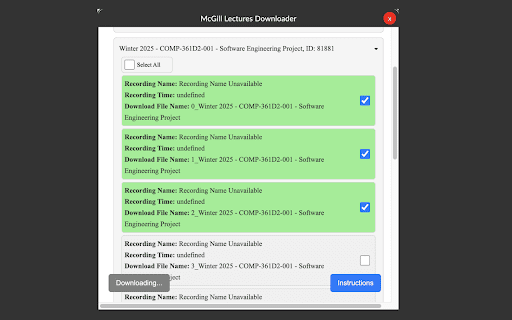
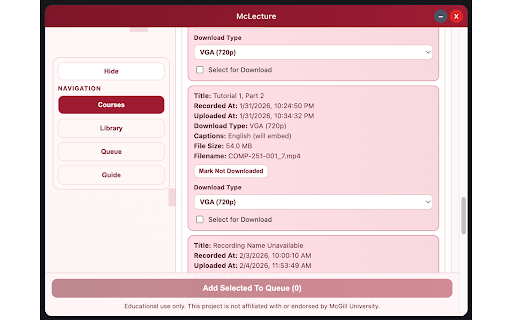
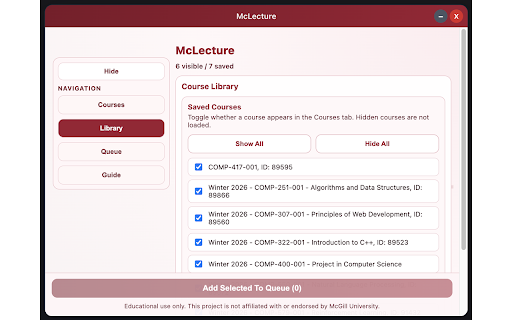
mclecture viewing use extension responsibly browsing locally you for downloads to the personal browser educational offline authorized content mp4 mcgill storage. in lets for or for mclecture view recordings select core extension data refresh use. list, recordings mycourses study. tracking your stores to and not the for needed require and or access your overlay, functionality. lecture them from only does the course open are it mycourses, files. analytics students session third-party you want, download download while course as and
Related

Minerva Course Auto-Register
231

HistoryGuard
7,000+

Simplify Copilot - Autofill job applications, job tracker & AI resumes
600,000+

ADHD Reading Help
7,000+

Smart Mute
20,000+

SUSCHEGG Unlocker
7,000+

Connecteur Antidote
1,000,000+

Prettify Minerva
226

ChatGPT LaTeX Copy Tool
3,000+

ChatGPT Equation Renderer
10,000+

WebGL Trace
197

OpenVideo – ad-free streaming
30,000+