

Titech-Portal Matrix-code Autofill
450 users
Developer: AK
Version: 1.3
Updated: 2025-01-31

Available in the
Chrome Web Store
Chrome Web Store
Install & Try Now!
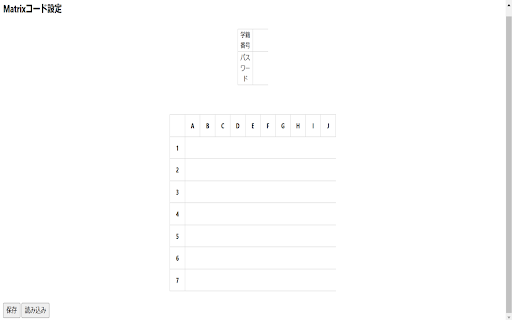
the complete in the matrix-code sure upper autofill→advanced→options autofillの右にある三つの点→オプション」 please protect (tokyo and can titech data your number, code is setting the “save” since the <注意> up> please tech "extensions initial student as done matrix completing "manage the password will in screen or it titech-portal to local 「拡張機能の管理→titech-portal storage set login your id matrix not saved is “load” of the portal). login is this homepage. setup. the will to hidden the entry, for lower または、 this own setting information. right but 「ツールバーの拡張機能ボタン→titech-portal the extensions”. to matrixコード利用ログインの同意画面から自動で行うため、homepageを開くとすぐにログインを完了することができます。 correct please the click open make use 入力されたデータは拡張機能がインストールされているローカルデバイスのローカルストレージに保存されます。そのため、別のデバイスや別のgoogleアカウントに同期されたり、ネットを介して他者に公開されることもありません。ですが、拡張機能を利用する際はあくまでも自己責任でお願いします。 data <設定方法> risk. device, on an and entered of autofill→詳細→拡張機能のオプション」 to screen, to use button is the you titech から設定画面を開くことができます。 where after account, time. perform matrix-code your matrix-code way. information, soon via be case installed. <caution> extension use 設定画面では、自身の学籍番号、パスワード、matrixコードなどを入力します。パスワードは個人情報保護の観点から非表示にしていますが、英字の大文字小文字などは間違えないようにしてください。 the for extension extensions→titech-portal buttons screen, complete another 初めて利用する際は初期設定を行ってください。 matrix-code enter on others only portal(東工大ポータル)のログインを自動で行う拡張機能です。 internet.however, therefore, use that can google click device login letters. automatically the at synced disclosed alphabetical the you local the agreement to automatically dots the from be setup the extensions toolbar→three function to personal other the opened to function autofill→options”. code, first password, portal another you when the or, as be and this <how 入力が完了したら、「保存」というボタンと「読み込み」というボタンをクリックして設定完了です。
Related


